Mappings tell sild which Merit Aktiva VAT rate, payment method, item and warehouse to put on each invoice. Set them once, and every invoice comes out right.
The setup wizard asks for VAT rates and payment methods. Everything else, and any later change, is in sild · Merit Aktiva → Settings.
Added a rate, payment method or warehouse in Merit Aktiva? Click Refresh from Merit Aktiva at the top of Settings. Changes apply after you click Save settings at the bottom of the page.
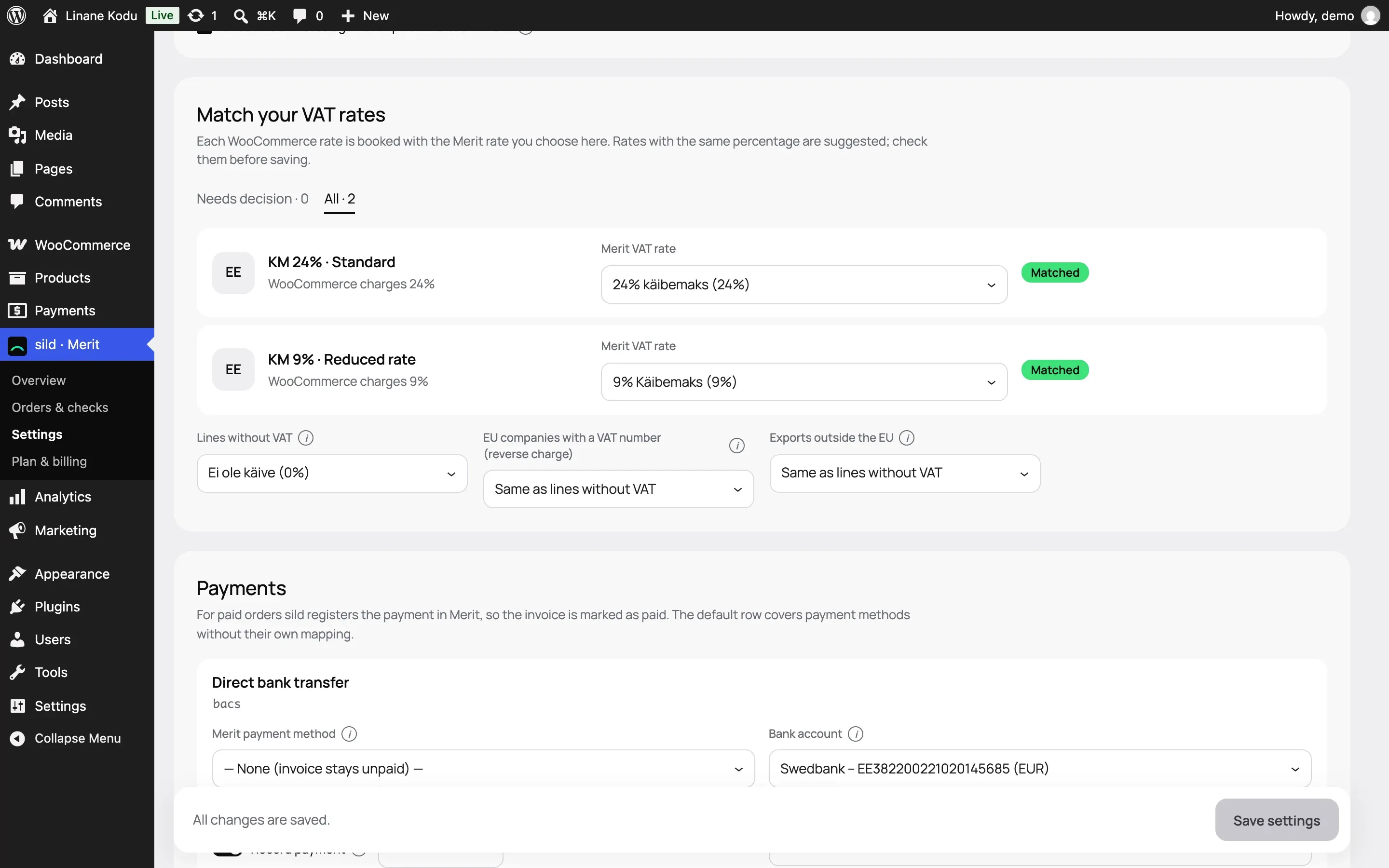
VAT rates
The VAT rates section (Match your VAT rates) has a row for every WooCommerce tax rate: country, name, tax class and "WooCommerce charges 24%". Choose the Merit Aktiva VAT rate for each row.
- Suggested: sild filled in a Merit Aktiva rate with the same percentage. It's saved when you continue.
- Matched: a rate is chosen, and the percentage is the same.
- Not mapped: choose the rate yourself. For other countries' rates (OSS) sild doesn't suggest one, because the same percentage can belong to another country. Usually you pick an OSS rate.
- Rate mismatch: WooCommerce charges a different percentage from the chosen Merit Aktiva rate. Invoices with this rate wait until you fix the mapping.
- No Merit Aktiva rate with that percentage? Create one there and click Refresh from Merit Aktiva.
Below the rows are three more fields:
- Lines without VAT: the Merit Aktiva rate for lines without WooCommerce tax, e.g. 0% or exempt. This one is required.
- EU companies with a VAT number (reverse charge) and Exports outside the EU: see invoices for businesses. Left empty, they use the rate for lines without VAT.
Shipping and fees keep the VAT that WooCommerce charged.
Payment methods
The Payments section has a row for every WooCommerce payment method, plus a last row, All other payment methods (the default row). Choose a Merit Aktiva payment method or bank account for each. What each field does is in payments and the reference number.
Shipping, fees and refunds
The Items section (Items and dimensions) has three items, each with a Code and a Name:
- Shipping item for shipping lines. Default code:
TRANSPORT. - Fee item for WooCommerce fees. Default:
TASU. - Refund item (amount-only refunds). Default:
TAGASTUS.
If Merit Aktiva has no item with that code yet, sild creates it with the first invoice.
Products are booked under their WooCommerce SKU. Merit Aktiva item codes can be up to 20 characters. If a product has no SKU, or a longer one, sild uses a generated code and shows a warning. Give your products short SKUs, and the codes stay the same.
Warehouses and department
In the same section:
- Warehouse (location): the warehouse on invoice rows. You need it when your Merit Aktiva company has more than one.
- Warehouse for returns: where returned goods go. Empty means the sales warehouse.
- Department: an optional Merit Aktiva department (cost centre) on every invoice, e.g. to tell the web shop from a physical store.
- Products that track stock in WooCommerce become stock items in Merit Aktiva: then every invoice lowers the stock there, and returns put it back. Leave it off if you don't keep stock in Merit Aktiva.
When the invoice is made and how it's numbered
In the Invoices section:
- Create invoice when the order is: Processing suits most shops: the invoice is made as soon as the order is paid. Completed waits until you ship. Paid (payment received) waits for the money.
- Invoice date: the order date, payment date or date of sync. The date of sync never lands in a month your accountant has already closed.
- Invoice number prefix: e.g. "W" gives W1234. Leave it empty to use the order number as it is. Handy when several shops write to one Merit Aktiva company.
- Credit note prefix: "C" by default.
Customers
In the Customers section, choose whether each private buyer gets their own Merit Aktiva customer or they all share one. Companies always get their own.
Done! Click Save settings, and sild knows how to build every invoice.